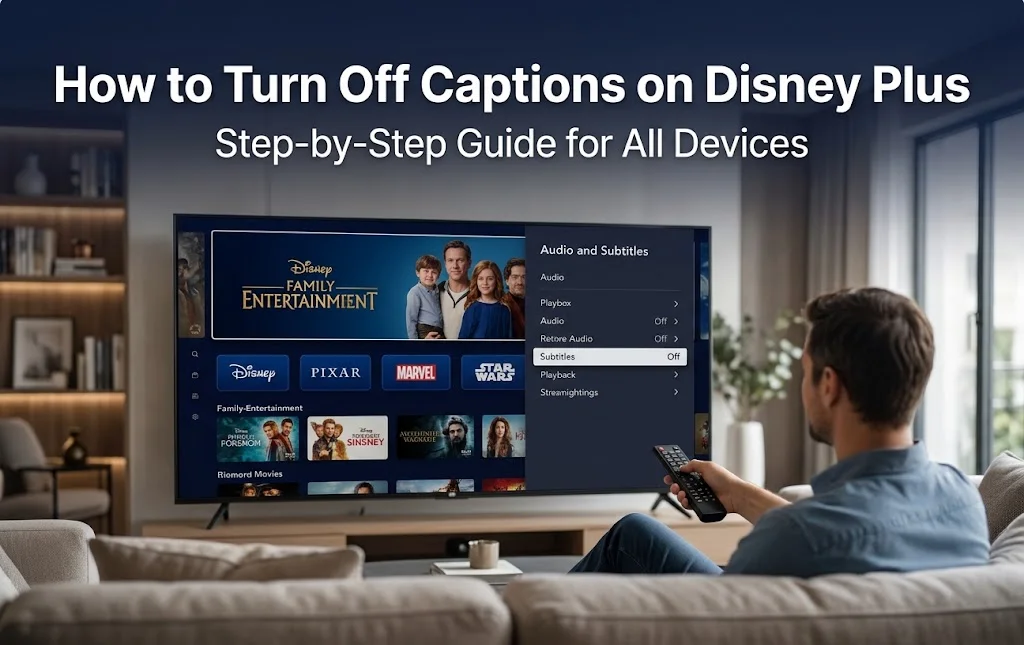
To turn off captions on Disney Plus, play a movie or show, open the Audio and Subtitles menu, and select Off. The icon looks a little different on each device, but the steps stay close.
This guide shows how to turn off subtitles on Disney Plus on TVs, streaming sticks, phones, computers and game consoles. It also fixes the common problem of Disney Plus subtitles that won’t turn off. A 2023 Preply survey of 1,503 Americans found that more than half of Americans watch content with subtitles most of the time, so this is a common question.
Table of Contents
How to Turn Off Captions on Disney Plus on Any Device
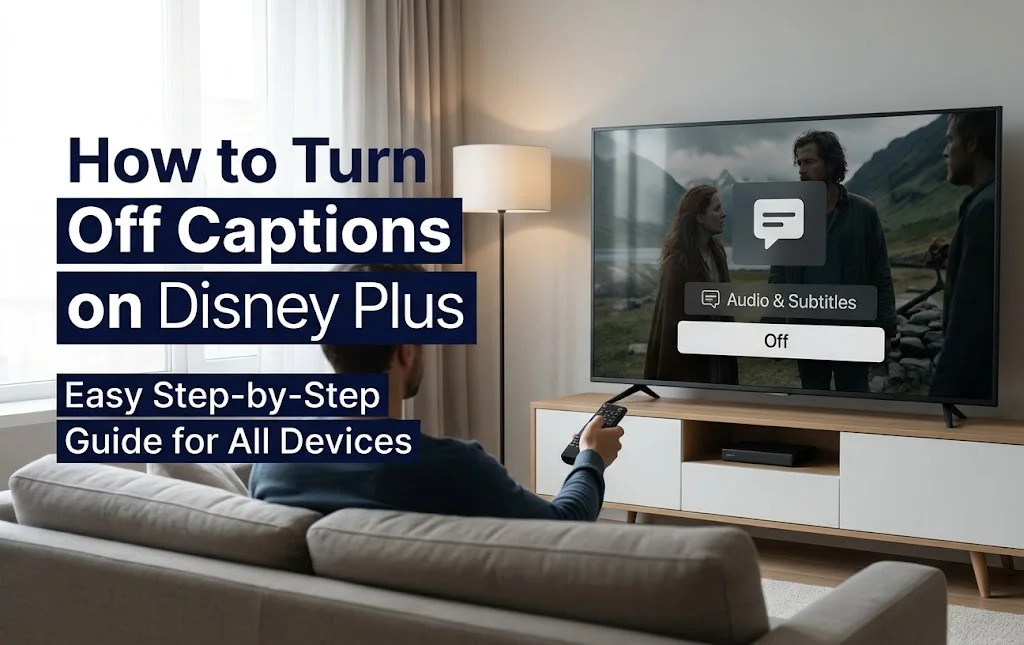
The fastest way is to change the setting while a video plays. The menu name is almost always Audio and Subtitles.
Quick steps for every device:
- Open the Disney Plus app or website and start a title.
- Show the playback controls. Press OK, Select or Up on a remote. Tap the screen on a phone. Move the mouse on a computer.
- Pick the Audio and Subtitles icon. It often looks like a speech bubble.
- Under subtitles, choose Off.
- Go back to the video and check that the text is gone.
Smart TVs (Samsung, LG, Sony, TCL, Hisense, Vizio): Use the steps above with your TV remote. If text stays, open the TV’s Settings and look for Accessibility or Closed Captions. Menu names change by brand and model.
Roku: Play a title, press OK, open Audio and Subtitles, and pick Off. Still seeing text? Go to Settings, then Accessibility or Captions, and check the captions mode. Options like always on or on mute can show text.
Amazon Fire TV Stick: Press the select button during playback and choose Off in the subtitle menu. Then check Settings and Accessibility for the closed captioning switch.
Apple TV: Open Audio and Subtitles in the player and select Off. Next, review Settings, Accessibility, then Subtitles & Captioning.
Chromecast and Google TV: When you cast, the phone or computer controls the text. Set subtitles to Off on that device, then cast again.
iPhone and iPad: Tap the screen, tap Audio and Subtitles, and choose Off. If text remains, open Settings, Accessibility, then Subtitles & Captioning and check Closed Captions + SDH.
Android phones and tablets: Use the same in-app steps. Then check Settings, Accessibility, and Caption preferences. Also look for Live Caption, which can add text to any audio.
Computer (Chrome, Edge, Firefox, Safari): Hover over the video, click the Audio and Subtitles icon, and select Off. Browsers can also make their own live captions, so check your browser’s accessibility settings.
PlayStation and Xbox: Choose Off in the Disney Plus player first. Then open the console’s Accessibility settings and check closed captions.
For the official menu names, see the Disney Plus Help Center.
If you’re looking for creative ways to express your personality on social media after enjoying your favorite shows, explore these sissy cuckold captions for bold, flirty, humorous, and spicy quotes that make your Instagram posts stand out.
Why Captions Won’t Turn Off on Disney Plus (and How to Fix Them)
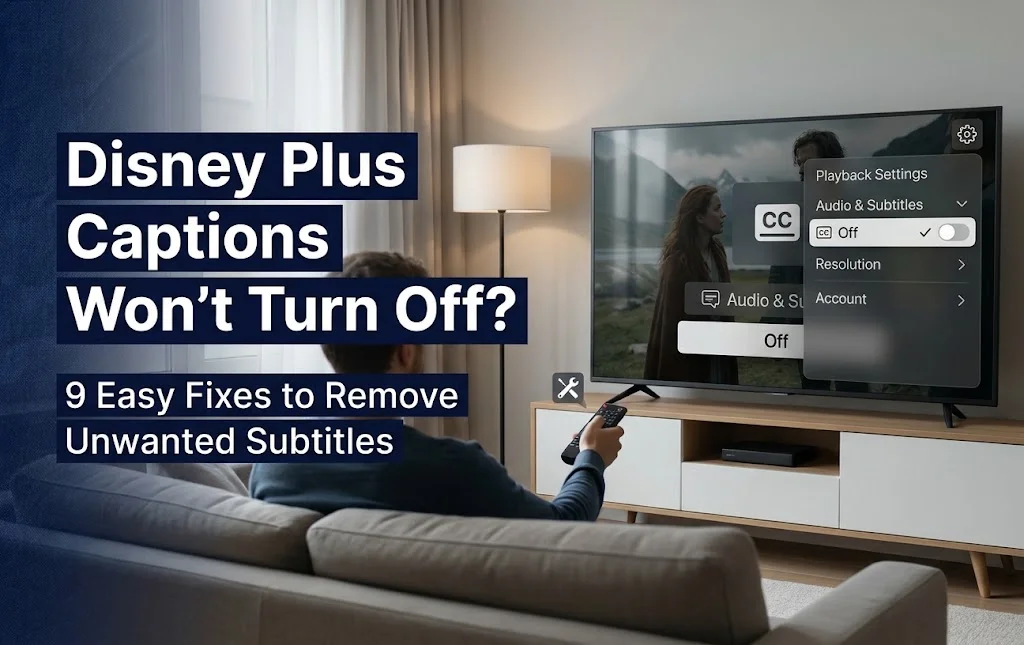
If you chose Off and still see words, the cause is often outside the app. Check the simple fixes first.
Common reasons captions stay on:
- Your TV or streaming device has its own closed captions setting turned on.
- Your phone or browser has Live Caption running.
- The text is part of the video, such as a sign, a translation or a title card. The subtitle menu can’t remove it.
- The setting didn’t save, or the app has a small glitch.
Fixes, from easy to advanced:
- Select Off again. Open the menu and make sure it says Off, not a language like English.
- Test another title. If the text vanishes there, the first video is the issue.
- Close and reopen Disney Plus. Fully exit the app, not just the video.
- Restart your device. This clears many playback bugs.
- Check your profile. Settings can differ between profiles, so confirm you are on the right one.
- Update the app or browser. An old version can ignore your choice.
- Review accessibility settings. Turn off device-level captions if they show in other apps too.
- Sign out and back in. Reinstall the app only as a last step.
- Contact Disney Plus support. Share your device, the title, and whether it happens on every video.
A quick test helps. If captions show in every app, the device is the cause. If they show only in Disney Plus, check the app and your profile.
While adjusting your Disney Plus viewing experience, you might also enjoy exploring creative ways to make your online content more engaging and expressive. If you’re looking for playful, bold, and teasing inspiration, explore these JOI captions for social media to find ideas that match your preferred style and personality.
Disney Plus Captions vs Subtitles: What to Turn Off
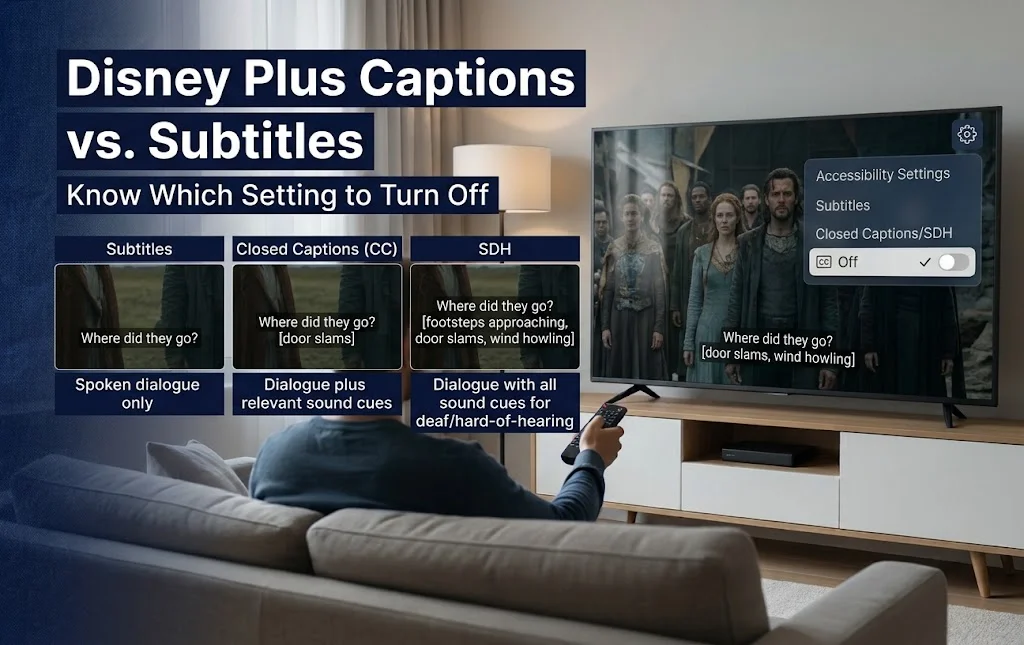
Disney Plus can list several text choices, so picking the right one matters. This stops the wrong text from showing.
Subtitles show spoken words, often in another language. Closed captions (CC) add sound cues, like music or a door slam, and often name the speaker. SDH means subtitles for the deaf and hard of hearing, and it works like captions. Choose Off to remove all of them.
Audio language and subtitle language are separate. You can keep the original audio and still set subtitles to Off. Changing the audio will not remove text.
Forced subtitles are the short lines that translate foreign speech in a scene. They may appear even when subtitles are off, depending on the title.
Want text, but a different language? Open Audio and Subtitles and pick another language. Not every title offers every language. Some devices also let you change subtitle size, color and background, which helps if text is hard to read.
Many viewers keep captions on for good reason. In the same Preply survey, 61% said background music makes dialogue harder to hear. If that sounds like you, try a bigger font before you turn captions off.
FAQs
How do I turn off captions on Disney Plus quickly?
Play a title, open Audio and Subtitles, and select Off. Then return to the video to check.
Why are subtitles still showing on Disney Plus after I turn them off?
Your TV, phone or browser may have its own captions on. The text could also be part of the video, like a sign or a translated line.
How do I turn off closed captions on Disney Plus on Roku, Fire TV or Samsung TV?
Choose Off in the Disney Plus player first. If text stays, open the device’s Accessibility or Closed Captions settings and turn them off.
Can I turn off subtitles on Disney Plus for all shows at once?
The app may remember your choice, but it can vary by device, profile and title. If subtitles come back on a new video, check the menu again.
How do I turn off captions on Disney Plus on my iPhone or Android phone?
Tap the screen, open Audio and Subtitles, and pick Off. Then check Accessibility settings, including Live Caption on Android.
Conclusion
To turn off captions on Disney Plus, open Audio and Subtitles and choose Off. If text stays, check your device’s accessibility settings, restart the app, and test another title. These small steps fix most cases fast.

Abroy Ehtisham is a dedicated website Captions Orbit author and content lead who specializes in crafting engaging, highly detailed, and insightful digital content designed to cut through online noise. Driven by a deep commitment to audience-first communication, clear narrative structuring, and thorough research, Abroy explores the evolving landscape of web culture, online media, creative strategy, and community building.